Beyond Text and Images: Using Ambient Audio and Micro-Video to Deepen Immersion in Questas

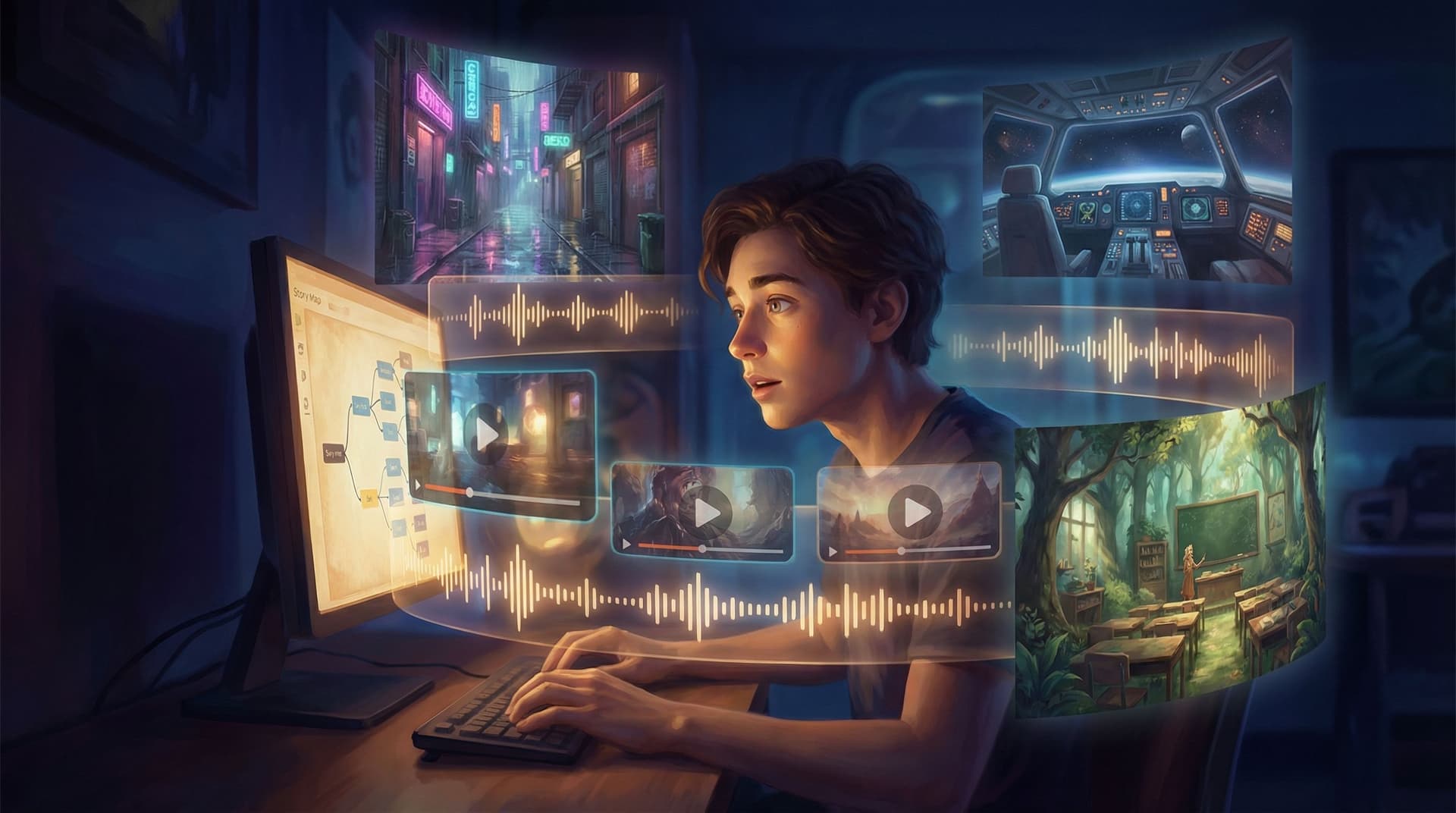
Interactive stories used to be walls of text with the occasional illustration. With platforms like Questas, we’ve already moved far beyond that: AI‑generated images and short video loops give each scene a cinematic feel. But there’s still one huge layer many creators underuse:
- Ambient audio — subtle soundscapes, environmental noise, and mood beds.
- Micro‑video — 2–8 second loops that feel alive without becoming full-blown cutscenes.
Handled well, these two elements can make your Questas adventures feel less like reading a story and more like being inside one.
This guide will walk through why ambient audio and micro‑video matter, how to use them without overwhelming your players, and practical workflows you can apply in your next project.
Why Sound and Motion Matter More Than You Think
You’ve probably had this experience: you mute a game or show and it instantly feels flat. The visuals are the same, but the experience isn’t.
That’s because:
- Audio sets emotional context faster than text. A single low drone can say “something is wrong here” before a line of dialogue appears.
- Subtle motion keeps attention. Micro‑video loops give each scene a sense of presence—wind in the trees, blinking console lights, a neon sign flickering.
- Multi‑sensory cues anchor choices. When a tense decision is paired with a specific soundscape and looped motion, players remember it more clearly.
For interactive stories built with Questas, where players are constantly making choices, this matters a lot:
- Choices feel weightier when the environment reacts through sound and motion.
- Branches feel distinct when each path has its own audiovisual identity.
- Replay value increases because returning players notice new details in both what they hear and what’s moving on screen.
If you’re already thinking about pacing and visuals (see our post on using short loops in “Show, Don’t Tell: Using AI Images and Short Video Loops to Pace Your Questas Story Beats” at /show-dont-tell-using-ai-images-and-short-video-loops-to-pace-your-questas-story-beats), adding audio and micro‑video is the natural next layer.
Ambient Audio: Painting the Air Around Your Story
Ambient audio isn’t about big, memorable songs. It’s about the air your characters breathe:
- The hum of a starship engine.
- Distant traffic and sirens in a cyberpunk alley.
- Soft classroom chatter before a crucial decision.
What Ambient Audio Actually Does in a Questas Scene
In a branching story, ambient audio can:
- Set genre and tone instantly (horror vs. cozy slice‑of‑life vs. sci‑fi procedural).
- Signal transitions (entering a cave, stepping into a boardroom, waking from a dream).
- Reinforce stakes (alarms, ticking clocks, storm build‑ups near key decisions).
Think of it as the emotional undercurrent that flows beneath your text and visuals.
Principles for Using Ambient Audio Well
When layering audio into your Questas stories, keep these principles in mind:
-
Subtle beats constant.
- Keep volume low enough that players can comfortably read.
- Avoid dense soundscapes with competing elements unless the chaos is intentional.
-
Loop-friendly clips only.
- Use tracks designed to loop seamlessly (no obvious starts/ends that will distract).
- Aim for 30–120 second loops; shorter clips can work if they’re very smooth.
-
One primary mood per scene.
- Don’t cram “mysterious + heroic + goofy” into one sound bed.
- Pick the dominant emotion of the scene and match the audio to that.
-
Use silence with intent.
- Short “audio blackouts” before or after big choices can heighten impact.
- A sudden drop from noisy ambience to near‑silence can signal danger or shock.
-
Respect accessibility and fatigue.
- Provide a clear way for players to mute or lower volume.
- Avoid harsh, high‑pitched, or repetitive sounds that become grating over time.
Practical Sources and Tools for Ambient Audio
You don’t need to compose your own soundtrack. A few creator‑friendly options:
- Royalty‑free libraries like Freesound, Mixkit, or Pixabay Audio.
- AI‑generated soundscapes from tools like AIVA or Soundraw, which can generate mood‑based loops.
- Simple in‑browser editors like AudioMass or TwistedWave Online to trim, fade, and loop.
When you import these into Questas, your goal is not “make every scene loud and epic.” It’s “make every important moment feel like it’s happening somewhere specific.”
Micro‑Video: Motion That Serves the Story (Not the Other Way Around)
Micro‑video is short, looped motion—usually 2–8 seconds—that plays behind or beside your text. In Questas, this might be:
- A looping shot of rain sliding down a window as a character makes a lonely choice.
- A flickering holographic display in a starship cockpit.
- A training simulation readout pulsing as learners decide their next move.
Unlike full cinematic cutscenes, micro‑videos are lightweight, repeatable, and easy to sprinkle across many branches.
Why Micro‑Video Works So Well in Branching Stories
- It reinforces pacing. A quiet 3‑second loop can give players a “breathing space” between heavy text blocks.
- It creates continuity across branches. The same looping background in multiple scenes helps players feel they’re still in the same location—even if choices diverge.
- It draws the eye to what matters. Subtle motion near key choices can guide attention without extra UI.
If you’ve read our post “Show, Don’t Tell: Using AI Images and Short Video Loops to Pace Your Questas Story Beats” (/show-dont-tell-using-ai-images-and-short-video-loops-to-pace-your-questas-story-beats), micro‑video is the same tool, now integrated with ambient audio for a fuller experience.
Design Guidelines for Effective Micro‑Video
-
Keep loops simple.
- One or two moving elements (rain, smoke, blinking lights) are plenty.
- Avoid complex action that competes with your text.
-
Match motion intensity to scene intensity.
- Calm conversation → slow, gentle motion.
- High‑stakes chase or timed decision → faster, more kinetic motion.
-
Optimize for performance.
- Short duration, reasonable resolution (especially for mobile players).
- Consider using muted color palettes for background loops so text remains readable.
-
Re‑use smartly.
- Reuse the same loop for all scenes in a single location to build a sense of place.
- Slightly tweak color or overlay effects to show time of day or mood shifts.
-
Plan for no‑video scenarios.
- Make sure your story still reads clearly if video fails to load or if a player is on a low‑bandwidth connection.
Where to Get Micro‑Video (Without a Film Crew)
You can:
- Generate AI video loops with tools like Pika or Runway, using your existing Questas images as prompts.
- Use stock footage from libraries like Pexels or Coverr, then trim and loop.
- Create motion from stills using parallax or subtle effects in tools like Canva (video export) or Kapwing.
Once you have a loop, drop it into your Questas scene as a background or key visual, and pair it with complementary audio.
Building Audiovisual “Scenes” in Questas: A Simple Workflow
Let’s turn this from theory into a repeatable process you can use on your next story.
Step 1: Identify Your Anchor Scenes
Not every node in your story map needs sound and motion. Start with:
- Opening scene (first impression).
- Major decision points (branching moments that define the story).
- Climactic confrontation or reveal.
- Key endings (especially those you want players to remember or replay toward).
If you’re already mapping your branches (see “Branching Without Chaos: Simple Story Mapping Techniques for Complex Questas Narratives” at /branching-without-chaos-simple-story-mapping-techniques-for-complex-questas-narratives), just mark 8–15% of your nodes as “AV‑enhanced.”
Step 2: Define the Emotional Goal of Each Scene
For each anchor scene, answer in one sentence:
When players leave this scene, I want them to feel ________.
Examples:
- “Uneasy but curious.”
- “Triumphant but worried about the cost.”
- “Overwhelmed by choices, but excited.”
This emotional target will guide both ambient audio and micro‑video choices.
Step 3: Choose or Create Matching Ambient Audio
For each anchor scene:
- Pick a base texture (wind, crowd murmur, engine hum, forest ambience).
- Layer one emotional element (subtle drone for tension, gentle piano for warmth, pulsing synth for urgency).
- Export as a loop and test it on repeat for 2–3 minutes. If it becomes annoying, simplify.
In Questas, attach this loop to the scene and preview it while reading your text. Adjust volume until the audio feels like a background presence, not a competing voice.
Step 4: Pair with a Focused Micro‑Video Loop
Next, choose a visual loop that:
- Shares the same emotional temperature as your audio.
- Highlights the key subject of the scene (location, object, or character).
For example:
-
Scene goal: “Player should feel trapped but defiant.”
- Audio: low industrial hum, distant metal creaks.
- Micro‑video: overhead fan spinning slowly in a dim interrogation room, light flicker.
-
Scene goal: “Player should feel wonder with a hint of danger.”
- Audio: soft choral pad, occasional crystalline chimes.
- Micro‑video: glowing forest mushrooms pulsing gently as spores float upward.
Drop the loop into Questas, then preview the scene again. Tweak brightness, contrast, or overlay to keep text legible.
Step 5: Test, Watch, and Iterate
Audiovisual scenes are where player behavior becomes especially revealing. Once your story is live:
- Watch completion rates and branch choices around AV‑enhanced scenes.
- Look for drop‑off points where audio or video might be distracting or slow to load.
Our post “Analytics for Adventure: Using Player Data to Improve Your Questas Stories Over Time” at /analytics-for-adventure-using-player-data-to-improve-your-questas-stories-over-time dives deeper into how to interpret this data and refine your story. Combine those insights with your AV design to gradually tune which scenes deserve more (or less) sensory emphasis.
Use Cases: Where Audio and Micro‑Video Shine
You don’t have to be building a fantasy epic to benefit from this. Here are a few concrete scenarios.
1. Education and Training Scenarios
If you’re turning lessons into branching stories (see /from-linear-lesson-plan-to-branching-scenario-a-practical-framework-for-educators-using-questas), ambient audio and micro‑video can:
- Simulate real‑world environments (hospital ward, call center, construction site).
- Help learners mentally rehearse situations by making them feel present.
- Differentiate difficulty levels (more intense soundscapes for advanced scenarios).
2. Marketing and Client Prototypes
When building interactive prototypes for pitches (as in /no-code-pro-grade-turning-client-briefs-into-interactive-questas-prototypes-in-a-single-afternoon):
- Use brand‑aligned soundscapes (upbeat for consumer apps, calm and confident for B2B tools).
- Add micro‑videos that mirror key user moments (dashboard animations, product in use).
- Keep it light but polished; you’re selling the feel of the experience.
3. Entertainment and Narrative Series
For ongoing story worlds or episodic content:
- Give each recurring location its own sound and motion identity (the tavern, the starport, the detective’s office).
- Use audio motifs (a specific chime or drone) that recur when certain characters appear.
- Build anticipation between episodes with consistent opening/closing AV themes.
Common Pitfalls (and How to Avoid Them)
A few traps to watch out for as you start layering sound and motion into your Questas stories:
-
Overloading every node.
- Fix: Start with anchor scenes only. Let quieter nodes stay simple.
-
Mismatched mood.
- Fix: Always write your one‑sentence emotional goal before picking audio/video.
-
Text becomes unreadable.
- Fix: Darken or blur busy loops, or move them behind a semi‑transparent overlay.
-
Performance issues on mobile.
- Fix: Test on an average smartphone. Shorten loops or reduce resolution where needed.
-
Ignoring accessibility.
- Fix: Offer volume controls, avoid flashing effects, and ensure your story still works beautifully with audio muted and video disabled.
Bringing It All Together
When you combine ambient audio and micro‑video with strong writing and meaningful choices, you get something special: interactive stories that feel inhabited.
In Questas, you already have the no‑code tools to:
- Map complex branches without chaos.
- Generate AI‑powered images and videos that match your world.
- Iterate based on how real players actually explore your story.
Adding sound and motion is not about turning your story into a movie. It’s about:
- Sharpening emotional beats.
- Grounding each choice in a specific place and moment.
- Giving players subtle sensory cues that make your world stick in their memory.
Where to Start: Your Next Small Experiment
You don’t need to redesign your entire library to benefit from this. Try a simple experiment:
- Pick one existing Questas story (or draft a short new one).
- Choose 3–5 anchor scenes: opening, one major decision, one climax, one ending.
- For each, define a one‑sentence emotional goal.
- Add one ambient loop and one micro‑video that support that goal.
- Publish, share with a few testers, and ask: “Did any scene feel especially vivid or memorable?”
Then compare their answers with your AV‑enhanced nodes. Use what you learn to expand to more scenes, or carry the same approach into your next project.
If you’re new to the platform, our guide “From Idea to Interactive Epic: A Step‑by‑Step Beginner’s Guide to Building Your First Questas Story” at /from-idea-to-interactive-epic-a-stepbystep-beginners-guide-to-building-your-first-questas-story pairs nicely with the techniques in this post.
Summary
- Ambient audio sets emotional context and makes locations feel real.
- Micro‑video adds subtle motion that supports pacing and focus.
- Together, they deepen immersion in your Questas stories without requiring code or a film studio.
- Start small: enhance a handful of anchor scenes, test with players, and iterate using analytics.
- Use accessible, loop‑friendly assets and keep readability, performance, and player comfort front and center.
Ready to Make Your Stories Feel Alive?
Open Questas, pick one scene that matters, and give it the full treatment:
- A carefully chosen ambient loop.
- A focused micro‑video.
- Text and choices tuned to match the mood.
Hit publish, share it, and pay attention to how people talk about that moment. That’s your proof that sound and motion aren’t extras—they’re part of the storytelling toolkit.
Adventure awaits. Make it something your players can hear and feel, not just read.