Prompt Libraries That Scale: Building Reusable AI Image Systems for Long-Running Questas Series

Long-running interactive series are where your work with Questas really starts to sing.
A single quest can be a great experiment. But a series of quests—a recurring leadership sim, a semester-long classroom world, an episodic brand saga—needs something more: visual continuity you can trust.
That’s where scalable prompt libraries come in.
If you’ve ever tried to keep characters, locations, and props visually consistent across dozens of branches and episodes, you’ve felt the pain:
- The mentor character looks 20 years older in episode three.
- The “same” office suddenly has a different layout and color palette.
- Your sci‑fi HUD UI drifts from clean minimalism to neon chaos.
On a platform like Questas, where AI-generated images and video are woven directly into a no‑code branching editor, this inconsistency doesn’t just look messy—it breaks immersion and undermines replayability.
A reusable prompt library is your antidote. It’s not just a folder of text snippets; it’s a system for generating on‑model visuals across an entire Questas series, no matter how big it gets.
In this post, we’ll walk through how to design those systems so they actually scale.
Why Reusable Prompt Systems Matter for Long-Running Quests
Before we get tactical, it’s worth naming what you actually gain by treating prompts as a system instead of one‑off magic spells.
1. Consistency Becomes a Feature, Not a Fight
When every character, location, and artifact is defined once and referenced many times, you get:
- Recognizable characters across branches and episodes.
- Stable locations that feel like real places instead of random backdrops.
- A coherent visual brand if you’re using Questas for training, research, or product storytelling.
If you’ve read our deep dive on AI as continuity editor in multi‑episode builds, you’ve already seen how continuity supercharges immersion. Prompt libraries are the practical backbone of that idea. You can explore that angle more in AI as Continuity Editor: Keeping Plot, Canon, and Visuals Aligned Across a Questas Series.
2. Production Gets Faster Instead of Slower Over Time
Most teams start fast and then bog down as continuity debt piles up. A reusable system flips that curve:
- New scenes can be briefed with shorter prompts that reference existing templates.
- Visual QA shifts from “does this look good?” to “does this match our system?”
- New collaborators can ramp quickly by browsing your prompt library instead of reverse‑engineering your style.
3. You Unlock Bigger Formats
Once your visuals are stable, you can confidently:
- Extend a one‑off quest into a seasonal series.
- Turn a research storyline into a playable report that evolves over time (see Playable Research Reports: Turning Market Insights into Interactive Questas Story Decks).
- Build training curricula where learners revisit the same characters across multiple modules.
Prompt systems are leverage. Without them, every new episode feels like starting over.
Start with the World, Not the Prompt Box
The biggest mistake creators make is opening an image tool first and thinking, “What should I type?”
For long‑running series, you’ll move faster if you start with world design:
-
Define your core ingredients:
- 3–7 key locations (bridge of the starship, executive boardroom, underground market).
- 3–5 primary characters (mentor, skeptic, wildcard, antagonist).
- 5–10 signature props or motifs (company logo mug, glowing artifact, recurring UI overlay).
-
Lock in a visual tone:
- Is this world cinematic and grounded? Graphic and stylized? Cozy and hand‑drawn?
- What are the dominant colors, lighting moods, and composition patterns?
-
Decide what must stay fixed vs. what can flex:
- Fixed: character silhouettes, color of the main artifact, the logo treatment.
- Flexible: background extras, minor props, small environmental details.
If you want a structured way to do this, pair this post with our guide to AI style boards, From Moodboard to Mission: Using AI Style Boards to Lock In the Look of Your Next Questas World. Style boards give you the visual north star; prompt libraries turn that north star into reusable language.
Design a Prompt Schema, Not Just Prompts
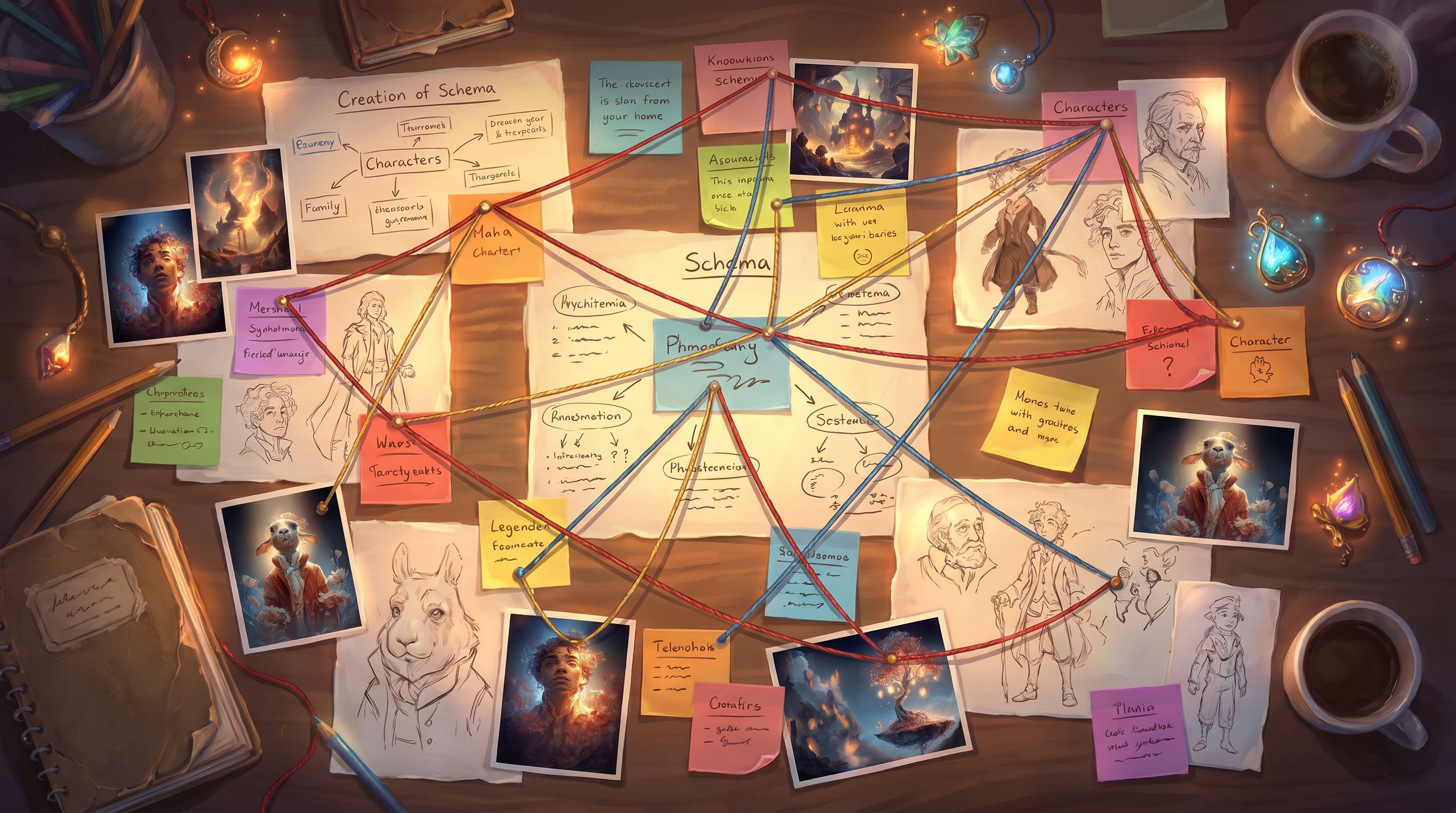
A prompt schema is a consistent structure you use for nearly every image request in a series.
Instead of writing free‑form prompts like:
“a woman in an office, dramatic lighting, cyberpunk style”
…you define a schema such as:
[Character] — [Pose & Expression] — [Location] — [Time of Day & Lighting] — [Camera Framing] — [Style & Medium] — [Series Tag]
Then you fill in the blanks using your world bible.
Example Schema for a Corporate Strategy Series
- Character: “CEO Amina, mid‑40s Nigerian woman, close‑cropped hair, navy blazer, subtle gold jewelry”
- Pose & Expression: “leaning forward at conference table, focused, mid‑sentence”
- Location: “glass‑walled boardroom overlooking city skyline at dusk”
- Time of Day & Lighting: “blue hour, warm interior lights, soft reflections on glass”
- Camera Framing: “medium shot, eye‑level, shallow depth of field”
- Style & Medium: “cinematic, high‑dynamic‑range, clean color grading, no exaggerated bokeh”
- Series Tag: “StrategyQuest S1 visual style, consistent character proportions”
The actual prompt might read:
CEO Amina, mid‑40s Nigerian woman, close‑cropped hair, navy blazer, subtle gold jewelry, leaning forward at conference table, focused, mid‑sentence, in a glass‑walled boardroom overlooking city skyline at dusk, blue hour with warm interior lights, soft reflections on glass, medium shot at eye level, shallow depth of field, cinematic, high‑dynamic‑range, clean color grading, no exaggerated bokeh, StrategyQuest S1 visual style, consistent character proportions
Why this matters:
- You can swap components (pose, time of day, camera angle) without losing the character or world.
- Collaborators can read and edit prompts like structured documents, not vibes.
- You can search your library by schema component (e.g., all “Location: underground market” prompts).
Turn Your World Bible into a Prompt Library
Once your schema is defined, you can build a prompt library that acts like a design system for AI visuals.
Think of it as the Figma component library for your Questas world.
1. Create Canonical Entries for Characters, Locations, and Props
For each recurring element, write a canonical prompt block that you rarely change.
Characters
- Name, age range, ethnicity, body type
- Distinctive clothing and accessories
- Signature expressions or poses
- One‑line personality summary (to guide mood)
Locations
- Core architecture and layout
- Color palette and materials
- Typical lighting conditions
- Ambient details (crowd, weather, tech level)
Props/Motifs
- Shape, scale, and material
- Color and surface details
- How it’s usually framed (close‑ups, held in hand, on a table)
Store these in a shared doc or inside Questas itself as reference notes attached to your scenes.
2. Build Template Prompts for Common Shot Types
You’ll use certain visual beats again and again:
- Establishing shot of a location
- Two‑character dialogue at a table
- Over‑the‑shoulder view of a screen or artifact
- Close‑up on a decision moment
For each beat, create a template prompt using your schema:
ESTABLISHING_LOCATION(location)DIALOGUE_TWO_SHOT(characterA, characterB, location)DECISION_CLOSEUP(character, prop)
In practice, these might live as text snippets like:
DIALOGUE_TWO_SHOT:[Character A canonical block] and [Character B canonical block], seated across from each other at [Location canonical block], medium two‑shot at eye level, balanced composition, soft practical lighting, [Series style tag]
When you build new scenes in Questas, you’re not inventing from scratch; you’re instantiating templates.
3. Version and Name Your Styles
As your project evolves, your style will too. Avoid chaos by:
- Giving each major visual direction a versioned name (e.g.,
NeoFactory v1,NeoFactory v2 warm,NeoFactory v3 graphic). - Keeping a short note on what changed (e.g., “v3: more graphic, reduced texture noise, simplified backgrounds”).
- Tagging prompts with the style name so you can roll back if needed.
This is especially helpful when you’re experimenting with new looks for a second season or a spin‑off quest.
Make Your Library Collaborative (So It Actually Gets Used)
A prompt system is only as good as its adoption. If you’re working solo, “adoption” means future‑you. If you’re in a team, it means writers, facilitators, and visual folks all pulling in the same direction.
Here’s how to make that happen.
1. Centralize the Source of Truth
Pick one home for your prompt library:
- A shared doc or wiki page.
- A dedicated “Prompt Library” scene inside your Questas workspace.
- A lightweight knowledge base tool.
The key is that everyone knows: this is where we look before we prompt.
If your team is co‑building in real time, you can borrow patterns from The Collaborative Quest Room: How Distributed Teams Co‑Write, Co‑Prompt, and Co‑Playtest Questas in Real Time. Treat the prompt library like a shared whiteboard: visible, editable, and part of your live sessions.
2. Add Examples, Not Just Definitions
For each canonical entry, include:
- 1–3 approved images that illustrate it.
- The exact prompt used to generate each image.
- A short note on what worked and what to avoid.
This turns your library into a training tool for new collaborators and a debugging aid when visuals drift.
3. Write “Guardrail” Notes
Some of the most valuable lines in your library will start with “Avoid…” or “Never…”
Examples:
- “Avoid fisheye or extreme wide‑angle distortion for interior shots; it breaks the grounded tone.”
- “Never show Mentor Kael smiling broadly; keep expressions subtle or wry.”
- “Avoid heavy film grain; we want clean, modern visuals.”
These notes help you steer AI outputs away from common pitfalls without over‑specifying every single prompt.
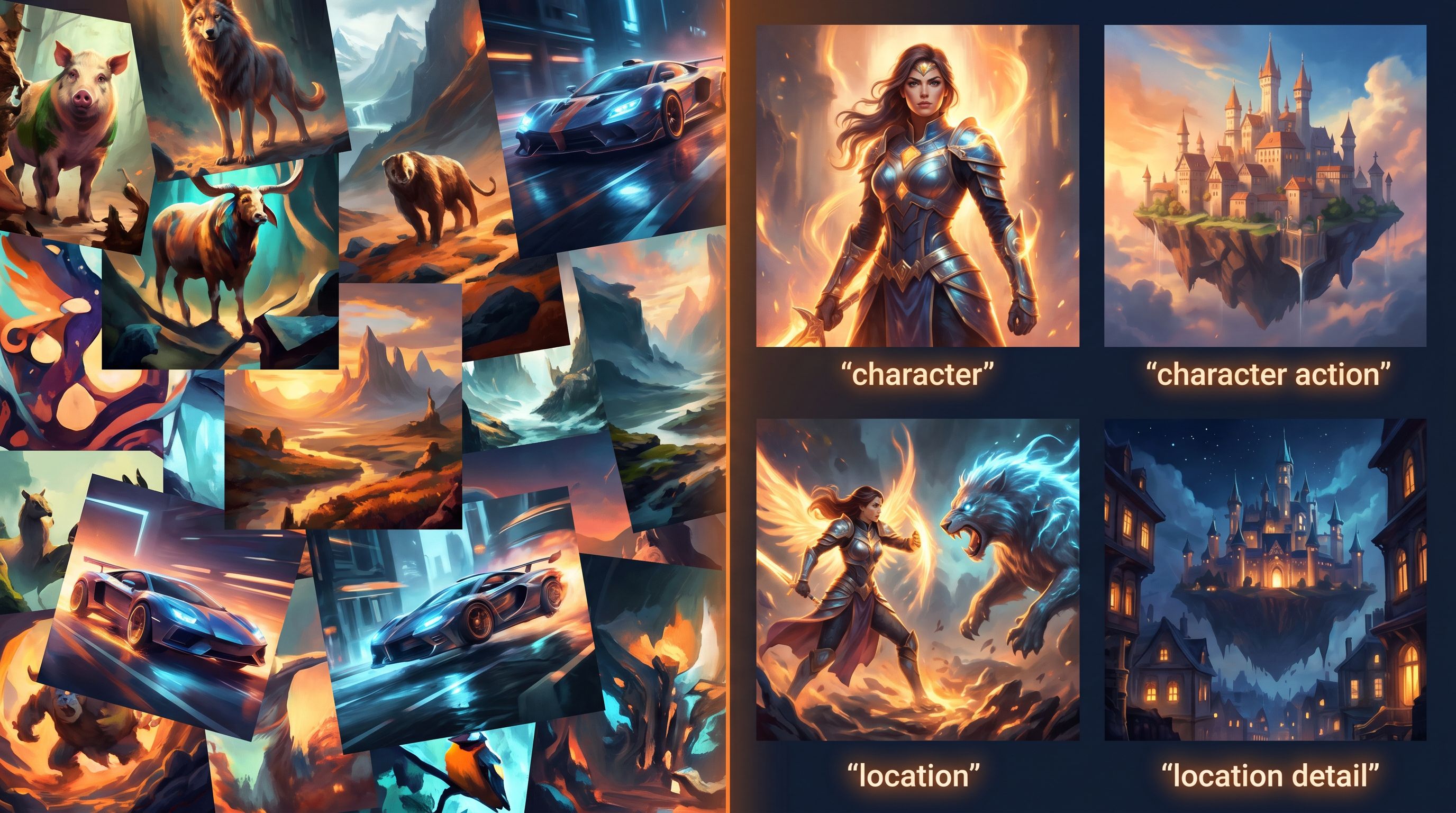
Connect Prompts to Narrative Structure
Prompt libraries really shine when they’re aligned with the way your story branches.
1. Map Visual Beats to Choice Types
Different kinds of choices benefit from different visual treatments:
- High‑stakes branch point → dramatic lighting, tighter framing, closer on faces or hands.
- Exploratory hub → wider shots, more environmental detail, brighter or more neutral lighting.
- Reflection or debrief → softer contrast, calmer compositions, maybe a recurring visual motif.
Define a small set of visual patterns tied to narrative function, then encode them as prompt templates:
HIGH_STAKES_CHOICE(character, location, prop)EXPLORATION_HUB(location)REFLECTION_BEAT(character, location)
When you’re building scenes in Questas, you can choose a pattern based on story logic instead of aesthetic whim. That makes your series feel designed, not just decorated.
2. Use Recurring Motifs as Visual Glue
Long‑running series benefit from visual callbacks:
- The same window framing the city during each major decision.
- A recurring object (the prototype device, the treaty document, the old photograph).
- A consistent UI overlay when players are “in sim” vs. “out of sim.”
In your library, define these motifs clearly and reference them in prompts whenever a scene hits a similar emotional or structural beat. Over time, players learn the visual language of your world.
3. Plan for Branch “Convergence Shots”
When branches converge back to a shared scene, you can still acknowledge the path taken visually:
- Slight differences in lighting (cooler if they chose the cautious path, warmer if they chose the bold one).
- Small prop variations (a folder of documents vs. a tablet, depending on earlier decisions).
Your prompt templates can include optional slots like [Path Variant Detail] so you don’t have to reinvent these differences every time.
Keep the System Lean Enough to Evolve
The risk with any system is over‑engineering. A good prompt library is structured but lightweight.
A few guardrails to keep it nimble:
- Limit canonical entries. If everything is “canonical,” nothing is. Focus on the 20% of elements that appear in 80% of scenes.
- Review after each episode or sprint. Retire prompts that never get used; promote frequently used ad‑hoc prompts into the official library.
- Document changes as “changelogs,” not rewrites. Instead of rewriting definitions, add notes like “v2: simplified jacket description to reduce artifacts on sleeves.”
And remember: your prompt system doesn’t have to be perfect to be useful. Even a rough first pass will dramatically improve consistency in your next Minimal Viable Quest and beyond.
Putting It All Together in Questas
Let’s imagine you’re building a long‑running Questas series for leadership training inside a global company.
Over the course of a year, you’ll release:
- 4 “seasonal” quests, each with 20–40 scenes.
- Short micro‑quests for special events and offsites.
- A few playable research scenarios to test new policies.
Here’s what a practical rollout of a prompt library might look like:
-
Week 1–2: World & Schema
- Define your core characters (e.g., CEO, skeptical VP, frontline manager).
- Lock in 3–5 key locations (HQ boardroom, regional office, factory floor).
- Create your prompt schema and a handful of shot‑type templates.
-
Week 3–4: Style Board & Canonical Prompts
- Build an AI style board for your world to align stakeholders.
- Generate 2–3 approved reference images per character and location.
- Write canonical prompt blocks and guardrail notes.
-
Week 5+: Build Season 1 in Questas
- For each scene, choose a shot‑type template and plug in canonical blocks.
- Store final prompts in scene notes or a shared doc linked from your project.
- Tag scenes with style versions so you can track evolution.
-
End of Season 1: Library Retrofit
- Audit which prompts you actually used.
- Promote the most reliable ones into your official library.
- Trim or revise anything that consistently produced off‑model results.
-
Season 2 and Beyond
- Onboard new writers and facilitators by walking them through the library first.
- Use the same schema and templates, with versioned tweaks.
- Let the system grow organically, but keep it pruned.
Over time, you’ll find that the prompt library becomes part of how you think about story design, not just a production artifact.
Summary: The Payoff of Scalable Prompt Libraries
Building reusable AI image systems for long‑running Questas series isn’t about being rigid; it’s about giving your creativity a reliable scaffolding.
When you:
- Start from a clear world bible instead of scattered prompts.
- Design a prompt schema and canonical entries for recurring elements.
- Create template prompts for common shot types and narrative beats.
- Keep your library centralized, collaborative, and lean.
- Align visuals with branching structure and emotional stakes.
…you get interactive series that feel cohesive, scale gracefully, and are far easier to maintain over months or years.
Your players feel like they’re returning to a living world—not a random assortment of AI experiments.
Ready to Build Your Own Prompt System?
You don’t need a massive team or a Hollywood pipeline to do this. You can start on your very next quest.
Here’s a simple first step you can take this week:
- Pick one quest you’re working on—or planning.
- List:
- 3 key characters
- 3 key locations
- 3 signature props or motifs
- Write a one‑paragraph visual description for each.
- Turn those into your first canonical prompt blocks, and use them consistently across 5–10 scenes in Questas.
From there, you can layer on schemas, templates, and guardrails as you go.
If you’re ready to see how this looks in practice, open up Questas, sketch a small branching story, and start building your own prompt library alongside it. Your future seasons—and your future collaborators—will thank you.