Beyond Linear Lore: Building Diegetic UIs, In-World Menus, and ‘Found Interfaces’ in Questas

Most interactive stories still borrow their interfaces from software, not from stories.
Buttons float over a scene. Menus slide up from the bottom. Stats and inventory live in tidy panels. It works—but it also reminds players they’re looking at a story, not living inside it.
Diegetic UI flips that. Instead of treating interface as a layer on top of the world, you treat it as part of the world itself:
- The “menu” is a battered field notebook your character flips open.
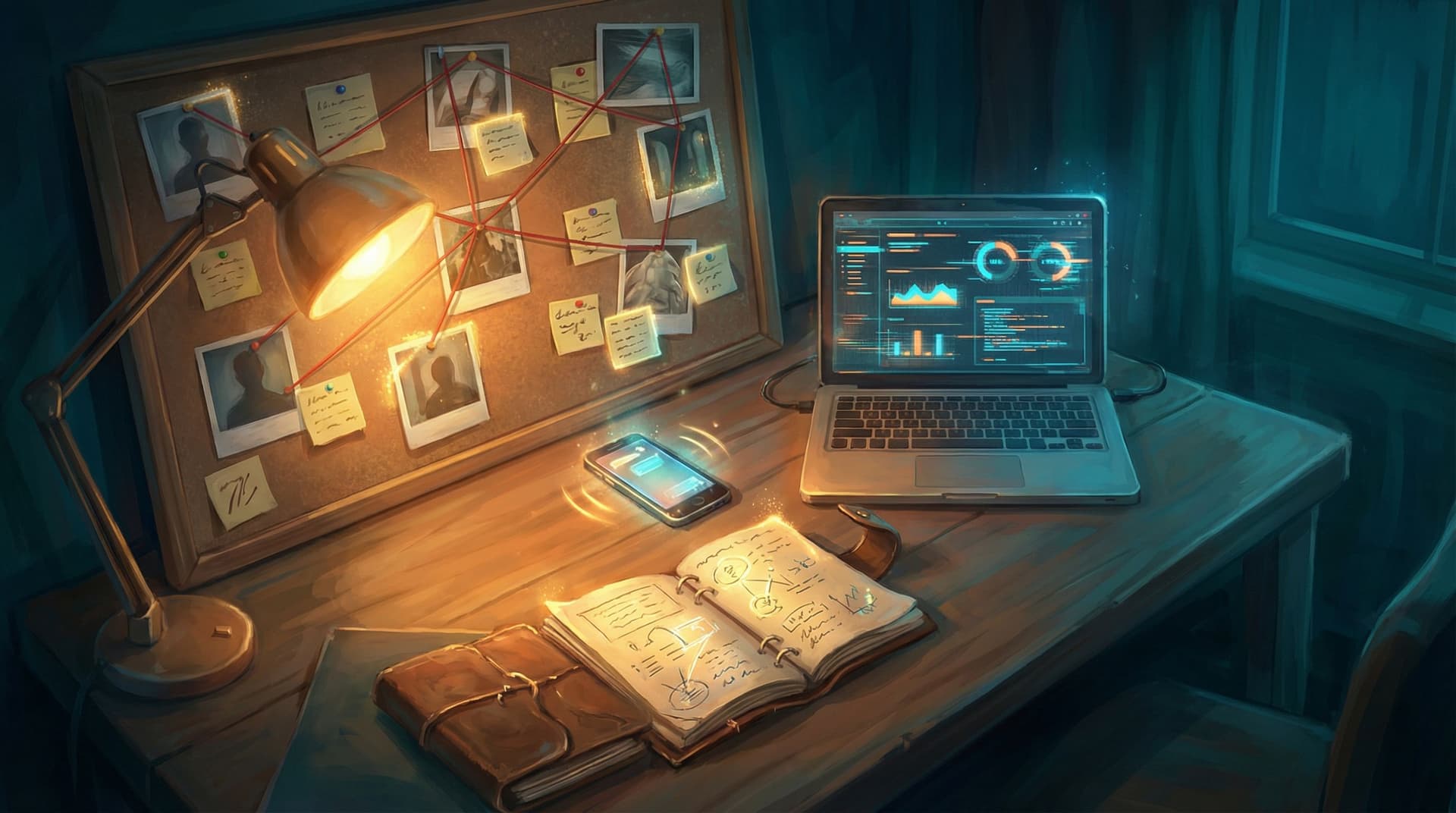
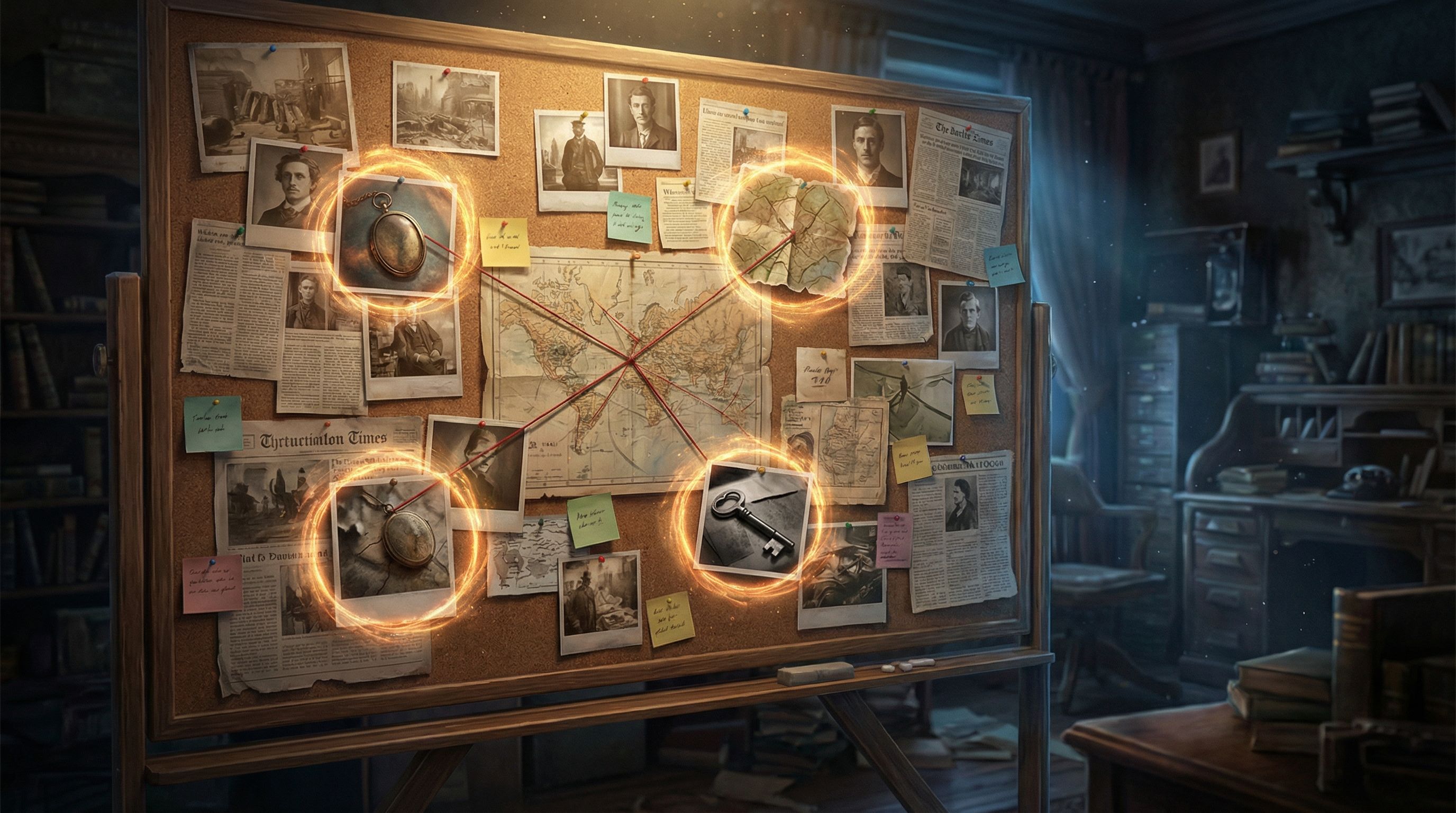
- The “quest log” is a corkboard covered in red string and Polaroids.
- The “choice buttons” are sticky notes on a monitor, labels on vials, or dialogue options scribbled on a receipt.
On a platform like Questas, where you can pair branching scenes with AI-generated images and video, this approach is a huge unlock. You’re not just building paths—you’re building interfaces that feel like artifacts from your storyworld.
This post explores how to design diegetic UIs, in-world menus, and “found interfaces” inside Questas, with concrete patterns you can adapt whether you’re making training simulations, brand stories, or narrative games.
Why In-World Interfaces Matter
Before we get tactical, it’s worth asking: why bother?
1. Stronger immersion and emotional buy-in
When the interface is the world, players stop mentally switching between “story mode” and “UI mode.” Every click feels like an in-character action.
Examples:
- Choosing a response by selecting a highlighted line in a chat log, instead of a generic button.
- Reviewing your “objectives” by zooming into a whiteboard full of scribbles.
- Checking status by reading a medical chart, cockpit panel, or mission dossier.
2. Clearer context and memory
Information that’s tied to a concrete object is easier to remember. It’s the difference between reading a bullet list and remembering “the red folder with the urgent sticker.”
For learning scenarios, this matters a lot. When you turn knowledge into artifacts—reports, dashboards, text threads—people remember where they saw something, not just that they saw it. If you’re already thinking about how to turn dense documentation into journeys, you might find it helpful to pair this with the ideas in From Lore Docs to Learning Paths: Using Questas to Turn Knowledge Bases into Interactive Knowledge Journeys.
3. Better alignment with how players already work and play
Most players already live with interfaces: inboxes, ticketing systems, CRM dashboards, medical records, social feeds. When your story’s UI echoes those tools, you don’t have to explain as much.
That’s especially powerful if you’re building:
- Product simulations that echo real workflows (see also Story Prototyping for Product Teams: Turning User Flows into Playable Questas Scenarios).
- Training modules where the “interface” is the thing they’ll actually use on the job.
- Brand experiences that feel like stepping into a character’s phone, inbox, or control room.
4. Natural support for replayability
Diegetic interfaces are perfect for hiding secrets and alternate readings. On a second playthrough, players notice:
- A sticky note they ignored the first time.
- A timestamp that contradicts a character’s story.
- A folder name that hints at a hidden branch.
Pair that with techniques from Writing for Re-Reads: Narrative Techniques That Reward Players Who Replay Your Questas, and you get stories that reward curiosity instead of just tolerating it.
Core Concepts: Diegetic UI, In-World Menus, and Found Interfaces
These terms overlap, but they’re useful lenses when you’re designing in Questas.
Diegetic UI
Interface elements that exist inside the storyworld—characters can see and interact with them.
- A spaceship HUD projected on the cockpit glass.
- A smartwatch screen your character checks.
- A fantasy grimoire whose pages you flip through to choose spells.
In Questas, you can represent these as AI-generated images or video loops where the “UI” is baked into the scene, with your actual choice buttons placed near or on top of those elements.
In-World Menus
Any structured navigation (inventory, settings, chapter select) presented as an in-world object.
- A wall of lockers = “level select.”
- A filing cabinet = “cases you can open.”
- A character’s backpack = “inventory and tools.”
Found Interfaces
Interfaces that show up as discovered artifacts inside the story:
- An abandoned laptop with open tabs.
- A security console log.
- A printed incident report with annotations.
- A social media feed or group chat.
These are especially useful for:
- Exposition without exposition dumps.
- Branching investigations.
- Training players to read and interpret real-world artifacts (e.g., safety logs, customer tickets, legal documents).
Designing Your First Diegetic Interface in Questas
Let’s walk through a concrete pattern you can adapt to almost any genre.
Step 1: Pick a metaphor that fits your story
Start by choosing a single, strong in-world object that can “host” decisions or navigation.
Some high-utility metaphors:
- Notebook / journal – great for character-driven stories, debriefs, and reflective learning.
- Dashboard / console – ideal for operations, safety, or technical simulations.
- Phone / chat app – perfect for modern dramas, customer support training, or marketing stories.
- Evidence board – works for investigations, incident reviews, or multi-threaded plots.
Ask yourself:
- What object would my main character obsess over?
- What object would my audience recognize from their real life?
The best choice is often where those answers overlap.
Step 2: Sketch the “screen” as a scene
In Questas, each scene is a chance to present a different state of your diegetic UI.
For your chosen metaphor, outline:
- Default view – what the player sees most often.
- Focused views – zoomed-in states when they pick a branch (e.g., a specific file, a text thread, a photo).
- Escalation states – how the interface looks under stress (alarms, warnings, handwritten notes, new tabs).
You don’t need high fidelity yet—just rough notes like:
“Evidence board with 5 photos, 3 sticky notes, one circled in red.”
“Phone lock screen with 3 notification bubbles from different contacts.”
You’ll turn these into AI image prompts later.
Step 3: Map choices onto in-world affordances
Instead of thinking “Choice A / Choice B,” think “Which object will they touch?” or “Which part of this interface will they act on?”
Examples:
- Evidence board
- Click the photo of the warehouse → branch into a night-time recon scene.
- Click the sticky note labeled “Finance?” → branch into a forensic accounting mini-arc.
- Phone UI
- Tap the message from your boss → branch into a compliance-focused path.
- Tap the group chat with peers → branch into a gossip/rumor path.
In practice, you’ll still use Questas’s regular choice buttons—but you:
- Place them visually near the relevant object in your AI image.
- Label them in-character (e.g., “Open the ‘URGENT’ folder” vs. “Continue”).
Using AI-Generated Visuals to Sell the Illusion
Diegetic UI lives or dies on clarity. The good news: AI images and video loops in Questas give you a lot of control.
1. Make clickable elements visually distinct
When you prompt for images, explicitly describe the elements that correspond to choices:
- “A corkboard with three clearly labeled sticky notes: ‘Warehouse,’ ‘Finance Records,’ ‘Witness List’.”
- “A smartphone screen showing two bold notification banners, one from ‘Boss’ and one from ‘Friend Group’.”
Then, in Questas:
- Position your choice buttons adjacent to those elements.
- Use matching phrasing in your button labels.
This echoes interface patterns from The UX of Choice: Interface Patterns that Make Branching Stories Feel Effortless, but now wrapped in a story artifact.
2. Use micro-cutscenes for feedback
Short AI video loops make great “state changes” for your in-world interface:
- A dashboard where warning lights begin to flash.
- A chat app where new messages rapidly appear.
- A notebook page where ink seems to spread or notes get crossed out.
These loops can:
- Signal that a choice had impact.
- Build tension before a critical decision.
- Mark transitions between phases of your scenario.
If you want to go deeper on this, pair these ideas with the patterns in Storytelling with AI Video Loops: How to Use Micro-Cutscenes to Signal Stakes and Consequences in Questas.
3. Control visual complexity
Diegetic UI can become visually noisy fast. To keep it readable:
- Limit each scene to 2–4 prominent interactive elements.
- Use depth of field in prompts (“sharp focus on two folders in the foreground, background slightly blurred”).
- Reserve bright colors or motion for truly clickable or critical items.
This is especially important if you’re designing for neurodiverse audiences who may be more sensitive to clutter and visual overload—an area we dig into more in Designing Branching Narratives for Neurodiverse Audiences: Attention, Overwhelm, and Choice Architecture.
Patterns You Can Steal: Diegetic UI Templates
Here are ready-to-use patterns you can adapt in Questas with minimal tweaking.
1. The Incident Console (Training & Ops)
Concept: A control panel for incidents—IT outage, safety event, PR crisis.
In-world interface elements:
- Live alerts panel (branches into different incident types).
- Triage queue (branches into which ticket you open first).
- Resource menu (playbooks, escalation contacts, tools).
How to build it in Questas:
- Create an opening scene: a wide shot of a monitoring console with 3–4 major widgets.
- Map each widget to a branch:
- “Open the security alert.”
- “Review the customer impact dashboard.”
- “Check the incident runbook.”
- Use follow-up scenes to zoom into each widget as its own mini-UI.
- Use stateful callbacks (or simple narrative callbacks) to show consequences: e.g., later, the console shows “Customer complaints: HIGH” if they ignored the right alert.
2. The Case File Binder (Investigations & Story-Heavy Learning)
Concept: A physical binder or dossier holding multiple threads of a case or topic.
In-world interface elements:
- Tabs for sections (Background, Witnesses, Evidence, Timeline).
- Inserted photos and clippings.
- Handwritten annotations.
How to build it in Questas:
- First scene: cover of the binder on a desk, with tabs visible.
- Choices are framed as tabs: “Open the Witnesses tab,” “Open the Evidence tab.”
- Each tab scene uses a close-up of that section, with its own internal branches.
- Use recurring visual motifs (same binder, same pen, same desk) to create continuity across scenes.
3. The Character’s Phone (Marketing, Fiction, Customer Empathy)
Concept: You inhabit a character’s phone for the duration of the story.
In-world interface elements:
- Lock screen notifications.
- Home screen with a few key apps.
- In-app views (chat, email, social, maps).
How to build it in Questas:
- Opening scene: lock screen with 2–3 urgent notifications.
- Choices correspond to which notification you open first.
- Subsequent scenes show in-app conversations or posts, with choices embedded as message replies or reactions.
- Use time-of-day and battery level as subtle storytelling tools (e.g., tension increases as battery drains).

Making It Play Nicely with Questas’ Structure
Diegetic UI doesn’t replace Questas’s core building blocks—it rides on top of them. A few practical tips so you don’t fight the tool.
Keep branches shallow but interfaces deep
It’s tempting to create a new branch for every little click on a console or phone screen. That gets unwieldy fast.
Instead:
- Reuse the same diegetic “screen” across multiple beats.
- Use text and subtle visual changes to show progression.
- Reserve true branches for meaningful decisions, not every tap.
A good heuristic: if a click doesn’t change stakes, time, or available options, it probably doesn’t need its own branch.
Use variables and callbacks to reflect “system state”
Even simple variables can make your diegetic UI feel alive:
trust_bosschanges the tone of messages from your manager.incident_severitydrives what warnings appear on the console.clues_foundcontrols which files are unlocked in your binder.
You don’t need to show these as numbers; you show them as interface changes:
- More red alerts.
- Harsher language in emails.
- Sticky notes that say “You’re missing something.”
Build a visual language and stick to it
Consistency is what turns a set of images into a believable interface.
Decide early:
- What color signals danger?
- What color signals “clickable or important”?
- How do you visually show something is disabled or unavailable?
Then bake that into your AI prompts:
- “Use a consistent teal highlight for interactive elements.”
- “All critical alerts appear as red banners at the top of the screen.”
Your players will learn this language quickly, and your story will feel far more intentional.
Avoiding Common Pitfalls
A few things to watch for as you experiment.
1. Over-cluttered scenes
If everything looks clickable, nothing feels clickable.
- Cap yourself at three main choices per scene when using dense visual interfaces.
- Use negative space and blur to push non-interactive details into the background.
2. Interface puzzles that block the story
There’s a difference between interpreting an interface and fighting an interface.
- If players consistently miss the “right” object to click, the problem is clarity, not their attention.
- Use tooltips, short character thoughts, or subtle motion in your video loops to draw the eye.
3. Forgetting accessibility and cognitive load
Diegetic UI is fun, but it can be overwhelming.
- Pair visual interfaces with clear text labels on choices.
- Avoid relying solely on color to signal meaning.
- Consider offering “simplified” branches where the same choice is presented in a more traditional layout for players who need it.
Bringing It All Together
Diegetic UIs, in-world menus, and found interfaces are more than visual tricks. They’re a way of aligning what players do with how they do it:
- Training scenarios feel like practice inside real tools.
- Brand stories feel like stepping into a character’s inbox, not a marketing funnel.
- Fictional adventures feel less like clicking buttons and more like handling artifacts.
With Questas, you have the ingredients to make this work without writing a line of code:
- A visual editor for mapping your “interface states” as scenes.
- AI-generated images and loops to turn metaphors into concrete artifacts.
- Branching logic and variables to keep your interfaces responsive and alive.
Start small: one metaphor, one interface, one scene. Then grow it into a full story.
Quick Recap
- Diegetic UI means your interface lives inside the storyworld—dashboards, phones, notebooks, evidence boards.
- In-world menus turn navigation into objects: lockers, binders, backpacks, consoles.
- Found interfaces (logs, chats, reports) are perfect for exposition, investigation, and training.
- In Questas, you build these as sequences of scenes where AI-generated visuals present the interface, and choice buttons map to in-world actions.
- Focus on clarity, consistency, and limited complexity so players feel immersed, not confused.
- Use variables and recurring visuals to make your interface evolve with the story.
Your Next Experiment
If this feels exciting but a bit abstract, here’s a concrete first step you can take this week:
- Pick a story you’ve already outlined—or a training flow you want to simulate.
- Choose a single diegetic metaphor (notebook, console, phone, binder).
- Build just three scenes in Questas:
- A wide “home” view of your interface.
- A zoomed-in view for Choice A.
- A zoomed-in view for Choice B.
- Use AI-generated images or loops to bring that interface to life.
- Share it with 2–3 people and ask only one question: “Did this feel like clicking a menu, or like handling an object?”
From there, you can layer in more branches, more artifacts, and more subtle UI storytelling.
If you’re ready to go beyond linear lore and build storyworlds where the interface is the adventure, open up Questas, sketch your first in-world screen, and let your next scene be an artifact someone can touch, not just a page they scroll past.