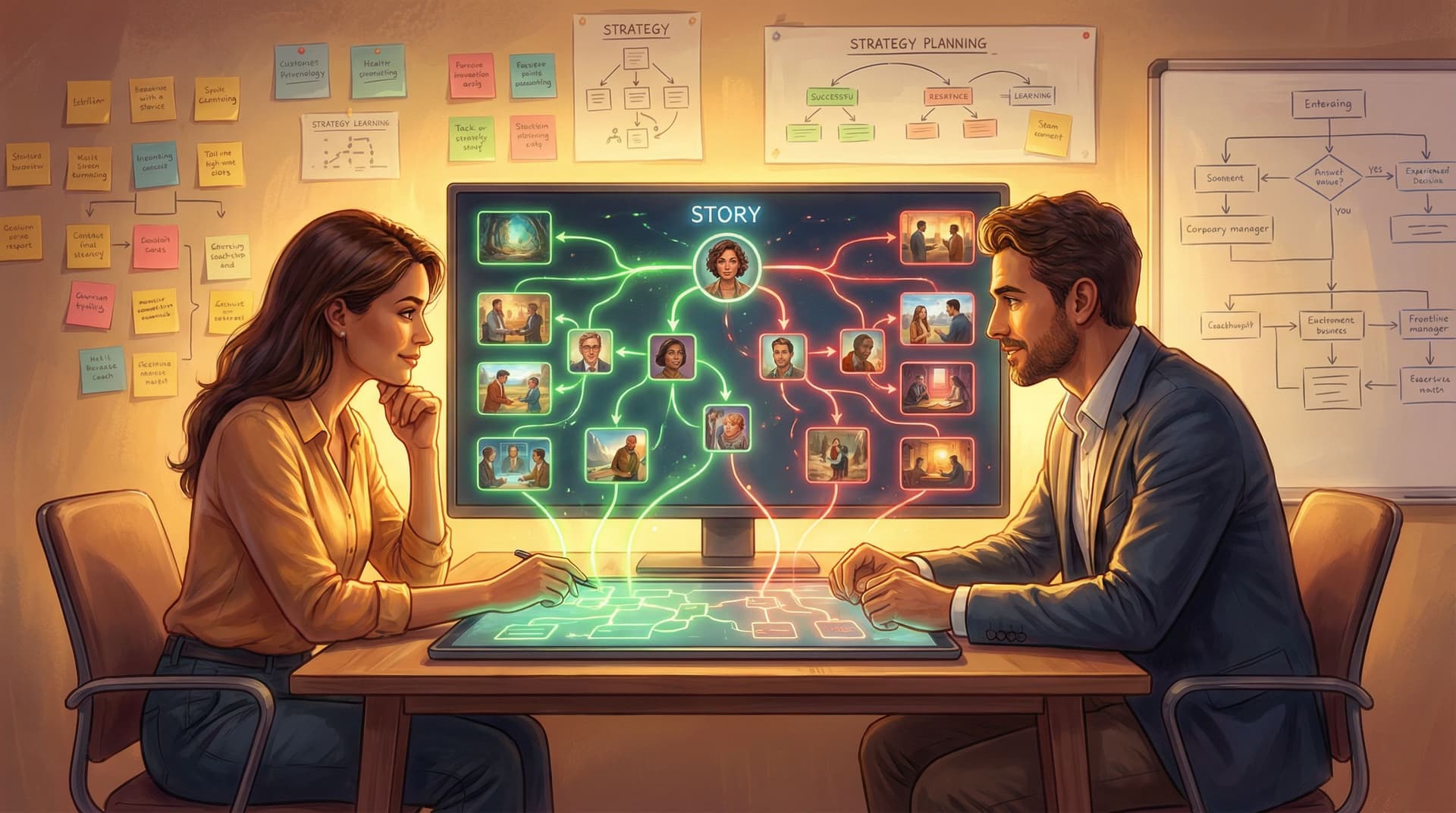
From Notion Docs to Narrative Hubs: Turning Internal Knowledge Systems into Questas-Powered Storyworlds


Internal knowledge is having a moment—and a bit of a crisis.
Tools like Notion, Confluence, and wikis promise a single source of truth. Yet many teams quietly admit that their knowledge base feels more like a junk drawer than a strategic asset. Information is scattered, out of date, or simply ignored. One recent analysis found that 84% of employees make decisions based on assumptions multiple times a week because they can’t easily access existing answers—even when the information technically exists.
At the same time, we know that interactive, choice-driven experiences improve engagement and retention across learning and communication contexts. Studies of choose‑your‑own‑adventure style e‑books and branching scenarios show significant gains in comprehension and recall compared to linear text alone.
So what happens when you combine those two realities?
You get a powerful opportunity: turning static Notion docs into living, branching “narrative hubs” powered by interactive stories and AI visuals—all built without code using platforms like Questas.
In this post, we’ll explore how to:
- Reframe your knowledge base as a storyworld instead of a filing cabinet
- Identify the best candidates in your Notion workspace for narrative transformation
- Design branching journeys that help people feel the consequences of choices, not just read about them
- Use AI‑generated visuals to make policies, runbooks, and frameworks tangible
- Connect your new narrative hubs back into your everyday workflows
Why Storyworlds Belong on Top of Your Knowledge Base
Most internal documentation is designed to store knowledge, not to activate it.
Common pain points:
- Fragmented content. Different teams use different structures, tags, and templates. Finding the “right” doc is half the battle.
- Low trust. Outdated or conflicting pages train people to ask a colleague instead of searching.
- Poor behavior change. People can explain the policy or process in theory, but freeze when stakes are real.
Meanwhile, interactive narratives excel at the things traditional knowledge bases struggle with:
- Context. Instead of listing steps, you drop someone into a moment: a customer escalates, a system fails, a deal is on the line.
- Consequence. Each choice leads somewhere. People see what happens if they skip a step or ignore a guideline.
- Curiosity. Branching paths invite replay: “What if I’d handled that differently?”
If you’ve read our piece on scenario‑driven learning, “Beyond Training Modules: How L&D Teams Can Use Questas for Scenario‑Based Coaching and Feedback”, you’ve already seen how this approach transforms training. The same logic applies to any internal knowledge system.
Here’s the core shift:
From: “Here’s the doc, please read it.”
To: “Step into this story and see how the doc actually plays out.”
Your Notion space remains the source of truth. But layered on top, you build Questas‑powered narrative hubs that:
- Guide people through realistic situations
- Pull in the right documentation at the right moment
- Turn policies, frameworks, and runbooks into memorable experiences
Step 1: Audit Your Notion Space for Story Potential
Not every page deserves a branching narrative. Start by finding high‑leverage areas where confusion or inconsistency is costly.
Look for:
-
Moments of judgment, not just mechanics
- Escalation policies
- Security and compliance decisions
- Customer or stakeholder communication guidelines
-
Processes with meaningful failure modes
- Incident response or on‑call runbooks
- Refunds, discounts, and exception handling
- Data privacy and access control workflows
-
Content already used in training or onboarding
- “How we work” culture docs
- Role‑specific onboarding paths
- Coaching frameworks and playbooks
-
Docs that are referenced often but misapplied in practice
- Product positioning and messaging
- Definition of done / quality criteria
- Approval workflows
Create a simple table (yes, in Notion) with columns like:
- Doc / space
- Owner
- Typical confusion / risk
- Ideal learner outcome (e.g., “Can confidently handle a refund edge case without manager help.”)
- Storyworthiness (Low / Medium / High)
Prioritize a small set of high‑impact candidates for your first narrative hub—enough to matter, not so many that you never ship.
Step 2: Choose the Right Story Shape for Each Knowledge Area
Once you’ve identified promising docs, the next question is: What kind of story are we telling?
Here are three reliable patterns that map well to internal knowledge.
1. The Forking Path Scenario
Best for: Policies, decision trees, and “if X then Y” logic.
Example: A data privacy request workflow.
- The player is a data protection officer responding to a complex user request.
- Each choice (e.g., “Treat as deletion request” vs. “Treat as access request”) leads down a different path.
- Embedded links or tooltips surface the relevant sections of your Notion policy.
This pattern is especially powerful for topics like compliance and ethics, which we explore in “Corporate, But Make It Quest: Turning Dry Compliance Topics into Engaging Branching Stories”.
2. The Time‑Boxed Sprint
Best for: Runbooks, incident response, and operational playbooks.
Example: An on‑call engineer responding to a production outage.
- The scenario unfolds over “rounds” or “minutes.”
- Each decision trades off speed, safety, and communication quality.
- The story references your Notion runbook, but compresses it into tense, time‑sensitive beats.
3. The Relationship Arc
Best for: Coaching frameworks, sales playbooks, and feedback models.
Example: A manager giving performance feedback.
- The player navigates multiple conversations over weeks or months.
- Their choices affect trust, motivation, and outcomes.
- Each branch illustrates how your internal coaching model plays out in real life—similar to the approach in “Branching Narratives for Real‑World Skills: Turning Coaching Frameworks into Questas Scenarios”.
Pick one pattern per knowledge area to avoid scope creep. You can always expand later.

Step 3: Map Your Narrative Hub Before You Build
Before opening Questas, sketch your narrative hub as a flow.
Think in layers:
-
Entry points
- Where does someone start this experience?
- New hire onboarding? A link at the top of a Notion page? A reminder in your incident‑response Slack channel?
-
Key decision moments
For each decision, define:- The situation (“Customer asks for a refund outside the policy window.”)
- The choices (2–4 well‑differentiated options)
- The relevant doc snippet from Notion
- The consequence (immediate and downstream)
-
Outcomes and reflections
- What does a “strong” path look like? A risky one? A catastrophic one?
- How will you debrief the player at the end? (e.g., “Here’s how your choices aligned with our policy and why it matters.”)
A simple structure that works well:
- Cold open – Drop the player into a concrete scene.
- First fork – A low‑stakes decision to teach the core mechanic.
- Escalation – Higher stakes, more ambiguity, more references back to docs.
- Climax – A make‑or‑break decision with visible consequences.
- Debrief – Summarize choices, link to key Notion pages, suggest next quests.
You’re not trying to encode every edge case. You’re building representative journeys that help people internalize principles and patterns.
Step 4: Bring It to Life in Questas (No Code Needed)
Now you’re ready to turn that map into a playable narrative hub using the visual editor in Questas.
A practical workflow:
-
Create a new project for your knowledge area
Name it after the outcome, not the doc. For example:- “Refund Judgment Lab” instead of “Refund Policy v3.2”
- “On‑Call Night from Hell” instead of “Incident Runbook”
-
Lay out your scenes first, then add polish
- Use the canvas to drop in scenes for each major moment.
- Connect them with choice nodes that mirror your flow sketch.
- Keep text lean at this stage—focus on structure.
-
Weave in your Notion knowledge
- Pull key excerpts (not entire pages) into dialogue, tooltips, or side panels.
- Use in‑story artifacts: an email screenshot, a snippet of policy text, a Slack‑style message log.
- Link back to full Notion pages at moments of reflection, not in the middle of tense decisions.
-
Add AI‑generated visuals that clarify, not clutter
Visuals are where narrative hubs break away from plain docs. They can:- Show the environment (a chaotic war room, a tense Zoom call, a cluttered customer inbox)
- Represent states (system healthy vs. degraded, customer calm vs. furious)
- Signal consequences (a news headline about a breach, a happy customer review, a legal notice)
For deeper guidance on visual cohesion, check out “AI as Art Director: Building Cohesive Visual Storyworlds in Questas Without a Design Team”.
-
Instrument for insight, not just completion
- Track which branches people choose most often.
- Note where they drop off or replay.
- Use this data to refine both the story and the underlying docs.
Step 5: Turn Docs into Diegetic Objects and Clues
One of the biggest advantages of narrative hubs is that information doesn’t have to look like a doc.
Instead of dumping a wall of text, you can:
- Show a screenshot of a Notion page on a character’s laptop as part of the scene.
- Turn a policy excerpt into a sticky note on a whiteboard.
- Hide a critical instruction inside a diagram or dashboard view.
This is where AI‑generated images and video shine. You can rapidly create:
- Whiteboards with half‑erased diagrams that hint at the “right” process
- Slack‑style chat windows where a senior teammate drops an important link
- Screens of your own tools with subtle differences between correct and incorrect configurations
For inspiration on using visuals as information carriers, rather than decoration, “AI‑Generated Props and Clues: Using Visual Details to Hide Secrets, Codes, and Easter Eggs in Questas” goes deep on this technique.
The key principle:
Make the knowledge feel discovered, not assigned.
When people have to notice, interpret, and act on visual details, they build far stronger mental models than when they skim a doc.

Step 6: Plug Narrative Hubs Back into Everyday Work
A narrative hub only works if people can actually find and use it. The goal is to make your Questas experiences feel like natural extensions of your existing knowledge system.
Practical ways to integrate:
-
Embed links directly in Notion.
At the top of a key policy page, add a section like “Practice this in a scenario” with a link to the corresponding quest. -
Use them in onboarding paths.
Instead of a checklist that says “Read these three docs,” try: “Play through these two quests, then skim the docs they reference.” -
Trigger them from events.
- After a real incident, share the quest version in your post‑mortem.
- When policies change, announce: “New scenario available—see how this update plays out in practice.”
-
Incorporate into coaching and 1:1s.
Managers can assign specific branches for discussion: “Next week, let’s replay the escalation path and talk about where you’d choose differently.”
Over time, your Notion space starts to feel less like a library and more like a launchpad into interactive practice.
Step 7: Iterate Using Player Feedback and Story Analytics
Once your first narrative hub is live, treat it like any other product.
Gather input from:
- Playthrough recordings or observations. Watch where people hesitate or skim.
- Quick in‑story surveys. Ask, “Was this moment realistic?” or “What information did you wish you had?”
- Branch analytics. Which paths are most popular? Which lead to repeated failures?
Then:
- Tighten or expand branches based on real confusion points.
- Update embedded policy snippets when Notion docs change.
- Add new “chapters” as your processes evolve.
For methods to go beyond surface‑level metrics, “Beyond Clicks and Completion Rates: Qualitative Playtesting Methods for Deeply Improving Your Questas Stories” offers a toolkit you can apply directly to internal narrative hubs.
A Concrete Example: From Refund Policy Doc to Refund Story Lab
To make this less abstract, here’s how one common Notion doc can transform.
Starting point:
A Notion page titled “Refund & Credit Policy” with sections on eligibility, edge cases, and approval thresholds.
Problems:
- New support reps skim it once during onboarding, then rely on Slack for real decisions.
- Managers see inconsistent outcomes and occasional policy violations.
Narrative hub version in Questas:
- Title: Refund Story Lab: 5 Customers, 5 Dilemmas
- Structure: Five short scenarios, each 5–10 minutes, with 2–3 key decisions.
- Visuals:
- Inboxes with different tones of customer emails
- A dashboard of account history and previous tickets
- A “policy board” in the background with the most important rules highlighted
- Mechanics:
- Each decision shows a brief consequence: customer sentiment, revenue impact, risk level.
- At the end, a debrief compares the player’s choices to the official policy and explains trade‑offs.
- Integration:
- Linked from the top of the Notion policy page
- Included in the “Week 1” onboarding checklist for customer support
- Used in monthly calibration sessions where the team plays through scenarios together
The underlying Notion doc hasn’t changed. But now it has a narrative front‑end that:
- Makes the rules feel real
- Surfaces the most important edge cases
- Creates a shared language for “what good looks like”
Bringing It All Together
Turning Notion docs into Questas‑powered narrative hubs isn’t about replacing your knowledge base. It’s about activating it.
When you:
- Identify the policies, runbooks, and frameworks where judgment really matters
- Wrap them in branching narratives with clear stakes and consequences
- Use AI visuals to make invisible concepts visible and memorable
- Plug those experiences back into your existing workflows
…you transform internal knowledge from something people should read into something they want to play.
You get fewer “Where’s that doc again?” messages—and more “Can we build a quest for this?” requests.
Your First Step: Pick One Doc, One Story
You don’t need a full narrative universe to start.
This week, try:
-
Open your Notion workspace.
Find one doc that:- People routinely misunderstand, and
- Has real consequences when applied incorrectly.
-
Define a single scenario.
Write a short paragraph describing a moment where this doc matters. Who’s involved? What’s at stake? -
Sketch three decisions.
For each, jot down:- The options someone might realistically consider
- The relevant line or section from the doc
- The immediate consequence of each choice
-
Log into Questas and build a tiny prototype.
- 3–5 scenes, 2–3 choices, one debrief.
- Add one or two AI‑generated visuals to ground the situation.
Share it with a small group, gather feedback, and iterate. You’ll be surprised how quickly your “static” knowledge starts to feel like a living storyworld.
Adventure awaits—right inside your wiki. All you need to do is open the first quest.