From Style Guide to Shot List: Building Reusable Visual Systems for Ongoing Questas Series

Long-running interactive series are where your visual craft is really tested.
When you’re building a one-off quest, you can get away with a few lucky prompts and a handful of strong images. But when you’re creating an ongoing series—monthly leadership sims, episodic fandom storyworlds, multi-module training paths, or a recurring market scenario lab—visual drift becomes your enemy.
Suddenly:
- The same character looks 25 in one branch and 45 in another.
- Your “flagship starship” changes shape every episode.
- Training scenarios that are supposed to feel like one coherent program look like they came from three different vendors.
If you’re using Questas for this kind of work, you already have the building blocks: branching narratives, AI-generated images and video, and a visual, no-code editor. The next step is treating your visuals as a system, not a set of one-off generations.
This post is about how to do exactly that: going from a style guide to a working shot list, and turning both into a reusable visual system you can rely on across an entire Questas series.
Why Visual Systems Matter for Ongoing Quests
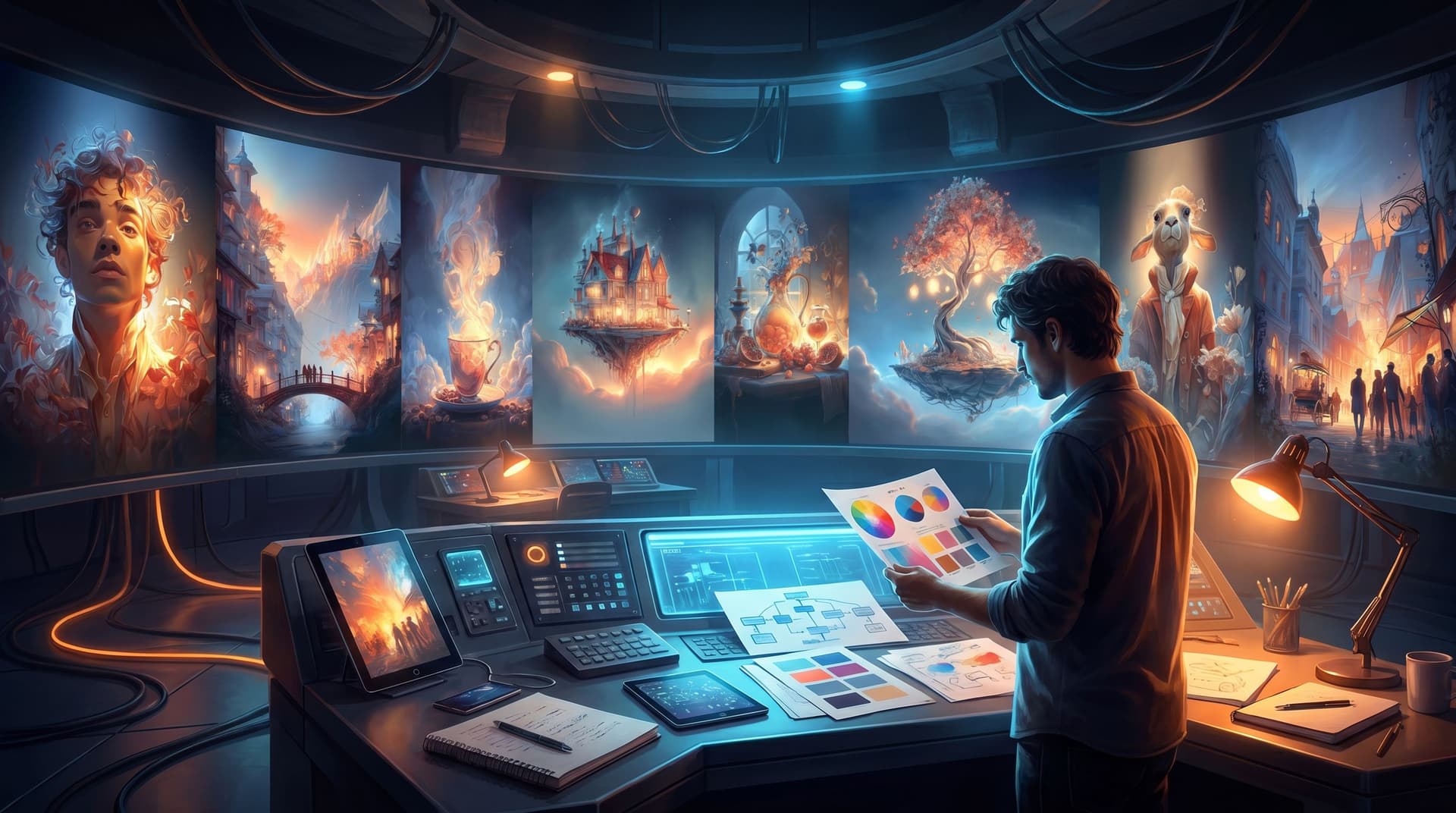
A visual system is the combination of rules, references, and reusable patterns that keep your world feeling like one world—no matter how many branches or episodes you add.
For ongoing series, that matters because:
- Continuity builds trust. When players recognize characters, locations, and UI elements across branches, the world feels intentional, not random.
- Consistency reduces cognitive load. The fewer surprises in style and composition, the more attention players can spend on choices and story.
- Reuse saves time and budget. You can iterate faster when you’re not reinventing your visual language for every new quest.
- Series feel like series. Whether you’re extending a fanfic universe, a training curriculum, or a research scenario, a stable visual grammar makes separate quests feel like chapters of one larger experience.
If you’ve explored how to lock in the look of a single quest with style boards, you’ll recognize some of the ideas from From Moodboard to Mission: Using AI Style Boards to Lock In the Look of Your Next Questas World. Here, we’re zooming out: what happens when your world has seasons, not just episodes?
Step 1: Define the Visual North Star for the Series
Before you think about shot lists or prompt templates, you need a clear north star for the series itself.
Ask (and write down) three things:
-
What’s the core promise of this series?
Examples:- “A recurring leadership sim where managers test-drive tough conversations.”
- “An episodic, branching fanfic saga that turns readers into co-authors.”
- “A portfolio of playable market scenarios for strategy offsites.”
-
What emotional tone should visuals carry across episodes?
Pick 3–5 words that describe the feeling you want players to have most of the time:- grounded, candid, documentary
- lush, cinematic, high-contrast
- cozy, sketchy, storybook
- clinical, minimal, data-forward
-
What realism level are you committing to?
Decide once and stick to it:- Stylized illustration
- Anime or graphic novel
- Painterly realism
- Photorealistic
Turn these into a short “series visual brief” that lives in your Questas project notes or an external doc. Every image and video prompt you write later should echo this brief.
Tip: If your series is tied to a specific use case—like market simulations or playable research—anchor your visual decisions to that purpose. For example, Playable Forecasts: Using Questas to Let Teams ‘Test-Drive’ Future Market Scenarios Before They Bet Big benefits from visuals that feel plausible and close to reality, not abstract fantasy.
Step 2: Build a Series-Level Style Guide (Not Just a One-Off Moodboard)
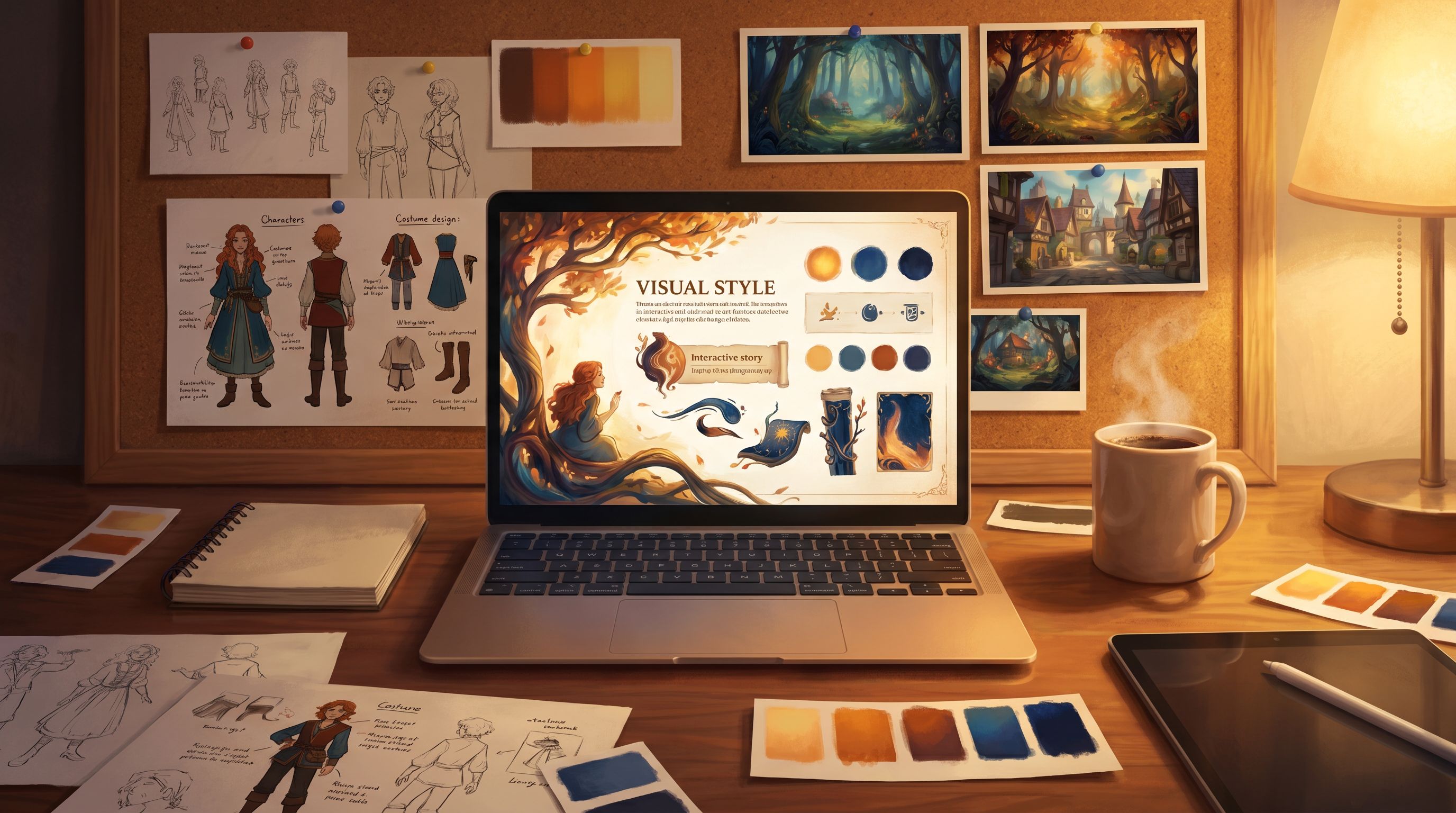
A style guide for a long-running Questas series is more than a collage of images. It’s a reference system you can return to as you generate hundreds of assets.
At minimum, include:
1. Character System
Define the “rules” for how people look.
- Casting lane: age ranges, body diversity, fashion baseline (e.g., “mid-level professionals in casual-office wear”).
- Facial detail level: clean, simplified faces vs. hyper-detailed skin and pores.
- Expression range: are micro-expressions subtle, or do you lean into more graphic, exaggerated emotion?
- Repeatable anchors: hair color, signature accessories, uniforms, or badges that help you re-identify recurring characters.
Document these with 3–6 reference images per major character type and 1–2 lines of description you can reuse in prompts.
2. Environment & Lighting
Decide how your world looks in the background.
- Primary locations: list 5–10 recurring spaces (e.g., open-plan office, starship bridge, neighborhood café, factory floor, hospital corridor).
- Lighting rules: soft natural light vs. hard overhead fluorescents vs. neon accents; warm vs. cool temperature.
- Clutter level: minimal, staged environments vs. lived-in, detail-rich scenes.
3. Color & Texture
Give yourself a palette and texture profile.
- Palette: 2–3 dominant colors and 2–3 accent colors that recur in UI elements, props, and key scenes.
- Texture: smooth and glossy vs. grainy and filmic vs. painterly brush strokes.
4. UI & Data Elements (If Relevant)
For training, research, or strategy series, you’ll often have dashboards, HUDs, or overlays.
- Shape language: rounded rectangles vs. sharp angles; circular charts vs. bar-heavy layouts.
- Data density: sparse, big-number visuals vs. dense, analytic screens.
Pull all of this into a single reference doc and, if you like, into a dedicated “style guide quest” built inside Questas itself—one branch per character, location, or visual rule, with example images.
Step 3: Turn the Style Guide into Prompt Building Blocks
A style guide is only useful if it shows up inside your prompts.
Rather than writing every prompt from scratch, create prompt modules you can mix and match.
Create Reusable Prompt Snippets
For each recurring element, define a reusable phrase:
-
Series tone & medium
- “cinematic, high-contrast, slightly desaturated color palette, shallow depth of field”
- “soft, sketchy illustration with visible pencil lines and muted earth tones”
-
Characters
- “mid-30s Black woman project manager with curly shoulder-length hair, wearing a teal blazer and jeans, subtle expression of concern”
- “late-40s South Asian man in a navy polo with a company badge, relaxed posture, half-smile”
-
Locations
- “open-plan tech office with large windows, warm afternoon light, plants and whiteboards, slightly cluttered desks”
- “futuristic starship bridge, wide glass viewscreen, cool blue ambient lighting, clean minimal consoles”
-
Camera & composition
- “medium shot, eye-level, subject centered”
- “wide establishing shot, slightly high angle, environment emphasized”
Store these in a prompt library that you can copy-paste from. If you haven’t explored building prompt libraries yet, Prompt Libraries That Scale: Building Reusable AI Image Systems for Long-Running Questas Series goes deeper into how to structure and maintain them.
Standardize the Prompt Structure
A simple template you can reuse:
[camera framing] of [character snippet] in [location snippet], [action or emotion], [series tone & medium], [lighting detail], [color palette note]
For example:
Medium shot of a mid-30s Black woman project manager with curly shoulder-length hair, wearing a teal blazer and jeans, standing in an open-plan tech office with large windows, subtle expression of concern as she looks at a laptop screen, cinematic, high-contrast, slightly desaturated, warm afternoon light, teal and soft orange accents.
Once you have this structure, your team can generate new scenes that feel like they belong to the same world, even when different people are prompting.
Step 4: Design a Reusable Shot List for the Whole Series
A shot list is your bridge between narrative beats and visuals. Instead of treating every scene as a blank slate, you define a set of recurring shot types you’ll use across episodes.
Think like a director planning a show, not a one-off film.
Identify Your Core Shot Types
For most ongoing Questas series, a small set of shots will do most of the work:
-
World-establishing shots
- Wide views of locations that introduce new spaces or remind players where they are.
-
Character-intro shots
- Clean, readable images that introduce or re-introduce key characters.
-
Dialogue & decision shots
- Medium or medium-close shots that pair well with text and choices.
-
Moment-of-truth shots
- More dramatic compositions (close-ups, dutch angles, lighting shifts) for big decisions or reveals.
-
Outcome & consequence shots
- Visuals that quickly communicate the result of a choice—success, failure, tension, relief.
-
UI / data overlay shots (if relevant)
- Screens, dashboards, or HUD-style visuals for research, training, or strategy quests.
For each shot type, define:
- Camera framing (wide, medium, close-up, POV, over-the-shoulder)
- Typical use cases (e.g., “use for first scene in a new location”)
- Prompt examples grounded in your style guide
Map Shot Types to Narrative Moments
Open your Questas series outline and tag scenes with the shot type they should use:
- Scene 1: World-establishing (office exterior)
- Scene 2: Character-intro (manager at her desk)
- Scene 3: Dialogue & decision (conflict with teammate)
- Scene 4A/B: Moment-of-truth (confrontation vs. avoidance)
- Scene 5A/B: Outcome (team alignment vs. unresolved tension)
When you’re building new episodes, you can reuse this mapping pattern instead of reinventing it.
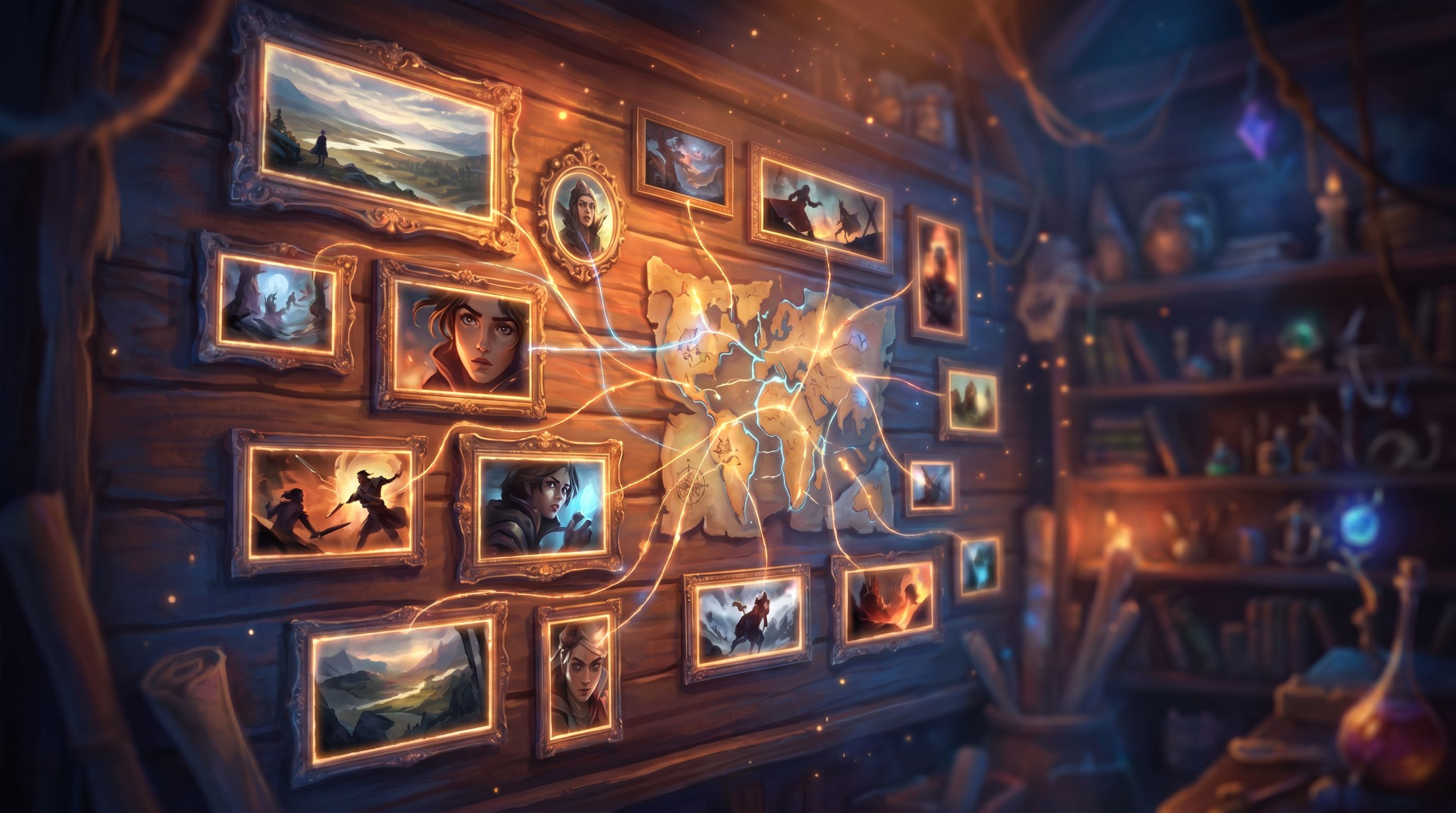
Step 5: Connect Shot List + Style Guide Inside Questas
Now it’s time to make this system live inside your actual builds.
Use Naming Conventions in Your Media Library
In your Questas media assets, adopt a simple naming pattern:
S01_E01_SHOT01_ESTABLISHING_office-exterior_v1S01_E01_SHOT03_DIALOGUE_manager-desk_v2S01_E02_SHOT07_MOMENT_truth-confrontation_v1
Include in the filename:
- Season and episode (or module) number
- Shot number
- Shot type
- Short description
- Version number
This makes it much easier to:
- Swap in updated images while keeping track of what changed.
- Reuse an establishing shot from Episode 1 in Episode 4 without hunting.
- Spot visual gaps (e.g., no outcome shots for a certain branch).
Create “Template Scenes” in a Sandbox Quest
Set up a separate “visual system sandbox” quest where you:
- Create one example scene per shot type.
- Attach the best representative image for that shot type.
- Paste the exact prompt used to generate that image into a note or metadata field.
When you or collaborators build new quests in the series, you can duplicate these scenes, change the narrative text, and adjust the prompt minimally while preserving style and framing.
Step 6: Plan for Micro-Video and Camera Motion
If your series uses AI-generated micro-video, your visual system should cover motion as well as stills.
Borrow ideas from film language and from posts like Camera Moves Without a Camera: Simulating Pans, Zooms, and Cuts with AI Images in Questas and Storyboard to Screen: Using AI-Generated Micro-Video to Pace Tension and Reveal in Your Questas.
Decide:
-
Where motion belongs by default.
For example:- Micro-video at the start of each episode to re-immerse players.
- Short motion beats just before high-stakes choices.
-
What camera moves you’ll use consistently.
- Slow push-in for reflective decisions.
- Quick cuts or slight handheld wobble for risky, high-tension moments.
-
How video relates to your shot list.
- Turn certain shot types into “motion-enabled” variants (e.g.,
MOMENT-OF-TRUTH_PUSHINvs.MOMENT-OF-TRUTH_STATIC).
- Turn certain shot types into “motion-enabled” variants (e.g.,
Document these just like your stills:
- Prompt patterns for motion.
- Duration guidelines (e.g., 3–5 seconds max).
- Where to place them relative to choices in your Questas scenes.
Step 7: Build a Feedback Loop to Keep the System Honest
Visual systems drift over time—especially when multiple people are contributing or when AI models evolve.
You’ll need a lightweight feedback loop to keep your series coherent. For that, borrow practices from The Visual Feedback Loop: Using Player Screenshots and Replays to Iteratively Refine Your Questas Worlds:
-
Collect real player views.
- Ask playtesters or early users to screenshot moments that feel especially on-brand or off-brand visually.
-
Review as a set, not in isolation.
- Lay out 20–30 screenshots from across episodes and branches.
- Ask: “Does this look like one series?”
-
Update the style guide and prompt library, not just one asset.
- If you notice a drift (e.g., lighting getting harsher over time), fix it at the system level by adjusting your standard prompt snippets.
-
Version your system.
- Treat big changes (switching from painterly to photoreal, or from warm to cool palette) as new “seasons” with their own style docs.
The goal isn’t to freeze your visuals forever; it’s to make changes deliberate instead of accidental.
Step 8: Make the System Collaborative-Friendly
Most long-running Questas series eventually involve more than one person: writers, facilitators, subject-matter experts, visual specialists.
To keep collaboration smooth:
-
Centralize your docs.
Host the style guide, shot list, and prompt library somewhere everyone can access—plus link it from your Questas project home. -
Create a “how to add a new episode” checklist.
Include:- Pick shot types for each scene.
- Choose characters from the existing character system.
- Start from prompt snippets; avoid free-form prompting for core visuals.
-
Run a short onboarding session.
Walk new collaborators through the sandbox quest with template scenes and show how the visual system works in practice.
If you’re working with distributed teams, the patterns from The Collaborative Quest Room: How Distributed Teams Co‑Write, Co‑Prompt, and Co‑Playtest Questas in Real Time can help you integrate these visual systems into your broader workflow.
Bringing It All Together
When you connect a style guide, prompt library, and shot list into one coherent visual system, your series gets:
- Recognizable identity. Players can spot a “quest in this world” at a glance.
- Production speed. You spend less time wrestling with prompts and more time refining story and choices.
- Creative headroom. Once the basics are stable, you can experiment at the edges—special episodes, one-off visual twists, or seasonal refreshes—without losing the core look.
And because Questas is built around a visual, no-code editor with AI-generated images and video, you don’t need a full art department to pull this off. You just need a clear system and the discipline to use it.
Summary
- Long-running Questas series need visual continuity to feel coherent and trustworthy.
- Start with a series-level visual brief that defines tone, realism, and emotional intent.
- Turn that into a style guide covering characters, environments, color, and UI.
- Translate the guide into reusable prompt snippets and a consistent prompt structure.
- Design a shot list of recurring camera setups mapped to narrative beats.
- Implement the system directly in Questas via naming conventions, template scenes, and a sandbox quest.
- Extend the system to cover micro-video and motion, not just still images.
- Maintain coherence with a visual feedback loop and collaboration practices.
Your Next Step
If you’re already building quests, your series visual system is probably half-formed in your head. The opportunity is to get it out of your head and into a reusable structure.
Here’s a simple way to start this week:
- Pick one ongoing or planned series in Questas.
- Draft a one-page series visual brief and list 5 core shot types.
- Build a tiny “visual sandbox” quest with one example scene per shot type and your best prompts attached.
From there, every new episode you ship will be easier, faster, and more visually cohesive than the last.
Adventure awaits—go build the visual system your next Questas series deserves.